
October 17, 2025
TikTok LIVE Highlights: Repurpose Streams into Short, High-Converting Videos
October 17, 2025
TikTok LIVE Highlights: Repurpose Streams into Short, High-Converting Videos
Learn how TikTok LIVE Highlights turn your top-performing livestream moments into short videos that drive orders, traffic, and engagement.
Introducing LIVE Highlights: Turn Your TikTok Shop Livestreams into High-Converting Short Videos
TikTok Shop isn’t just about selling during your livestream — it’s about making your content work after the LIVE ends. Enter LIVE Highlights: a powerful new feature that automatically transforms your top-performing livestream moments into product-focused short videos.
Whether you’re a seller, creator, or partner account, this tool lets you keep driving orders, traffic, and brand visibility — even when you’re off-air.
What are LIVE Highlights?
LIVE Highlights are short-form clips generated from your livestreams on TikTok Shop. The platform automatically detects high-engagement moments — specifically when you’re presenting a product — and turns them into bite-sized videos optimized for reposting.
These clips:
Focus on one product per video
Cut out viewer shout-outs or unrelated banter
Are capped at 60 seconds
Can be edited, posted, or downloaded with product anchors included
You can access and edit these clips from both the TikTok Seller Center and TikTok App.
Why Use LIVE Highlights?
Here’s why this feature is a must for any serious TikTok Shop strategy:
🔁 Extend the life of your content
Turn your best livestream product pitches into short videos that continue to generate GMV post-LIVE.
📈 Drive pre-LIVE buzz
Post your highlights before your next stream to warm up your audience and increase attendance.
🎯 Create more content with less effort
No need to re-record or manually trim your livestreams. TikTok does the hard part — you just polish and post.
How to Use LIVE Highlights via TikTok Seller Center
Step 1: Access Highlights
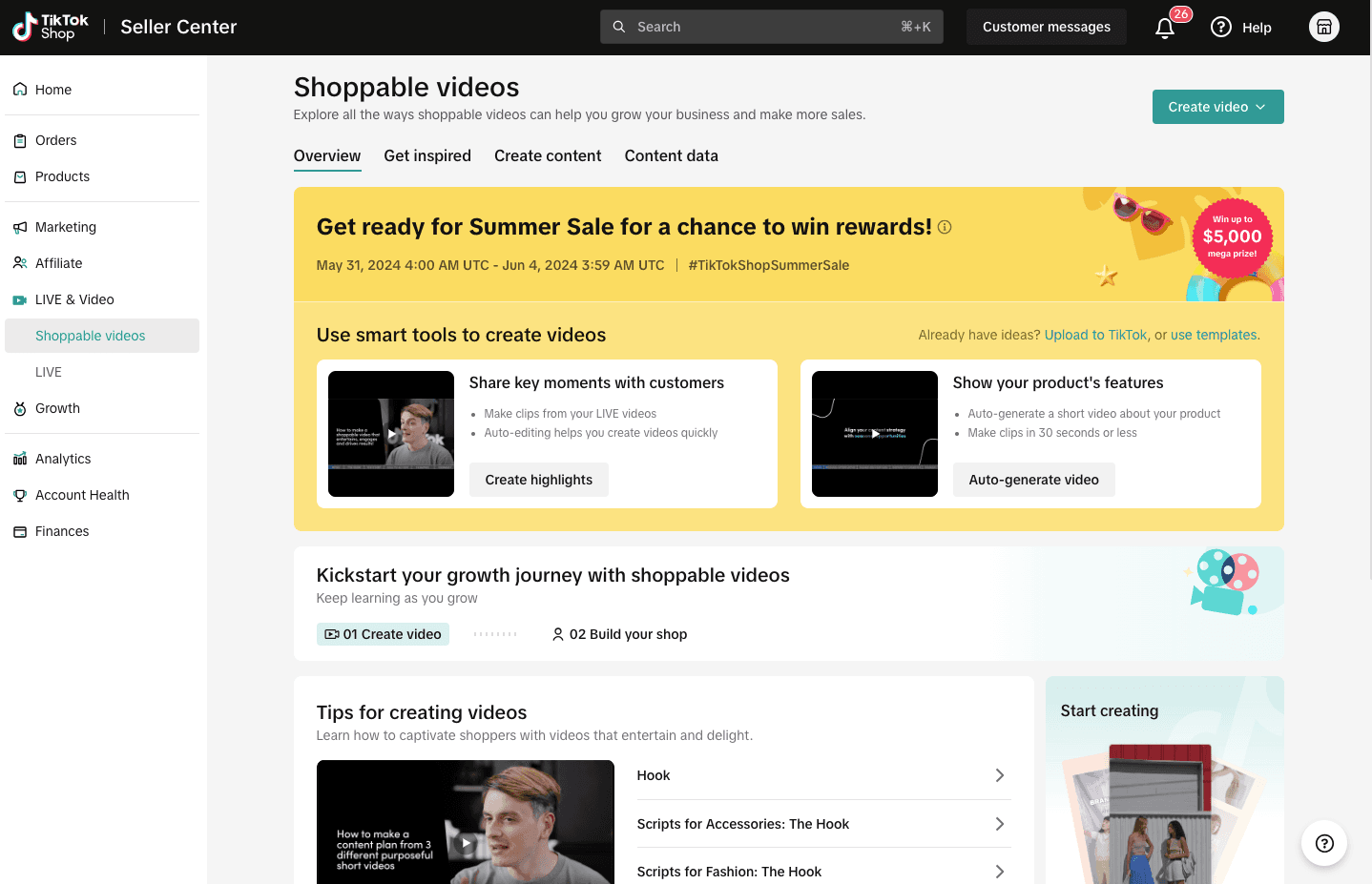
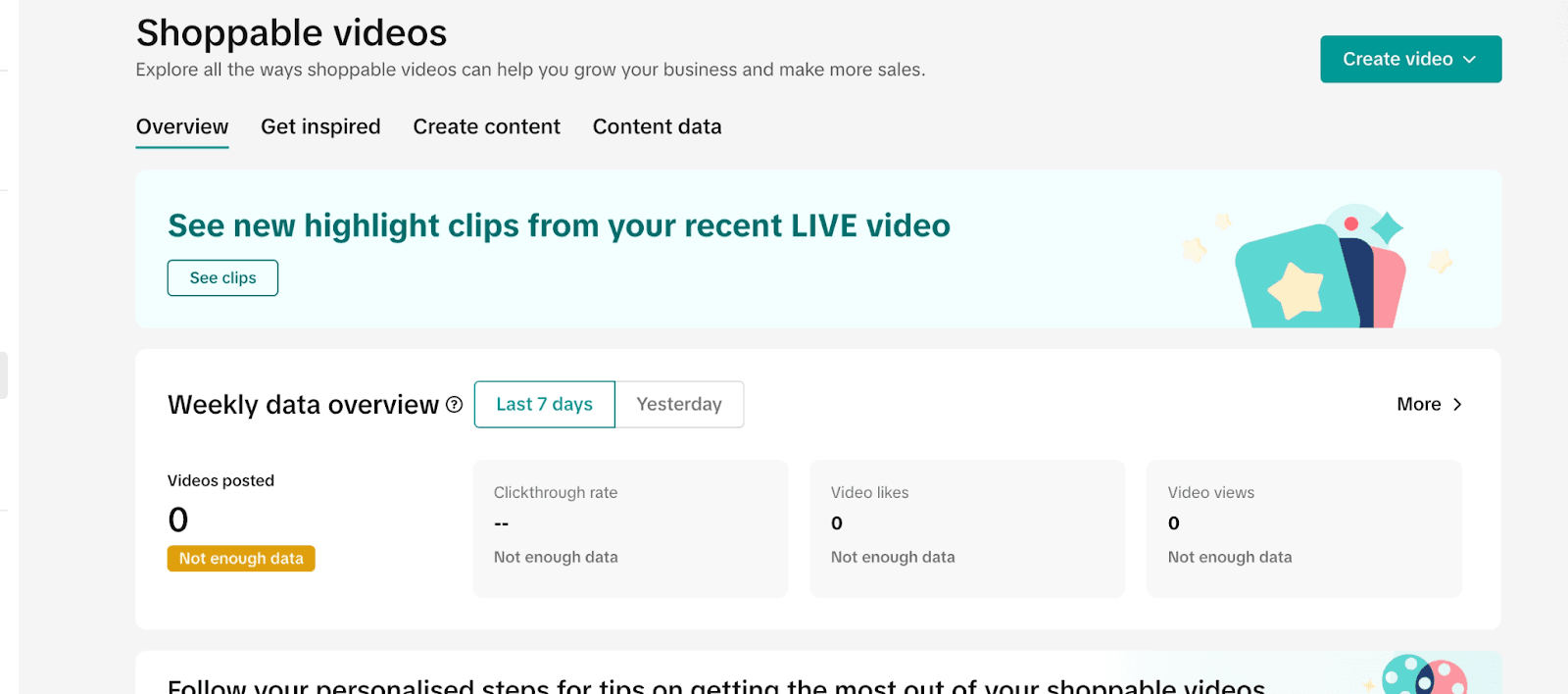
Go to Seller Center > LIVE & Videos > Shoppable Videos Hub
Click on the Create Content tab and select LIVE Highlights
Step 2: Review Automatically Generated Clips
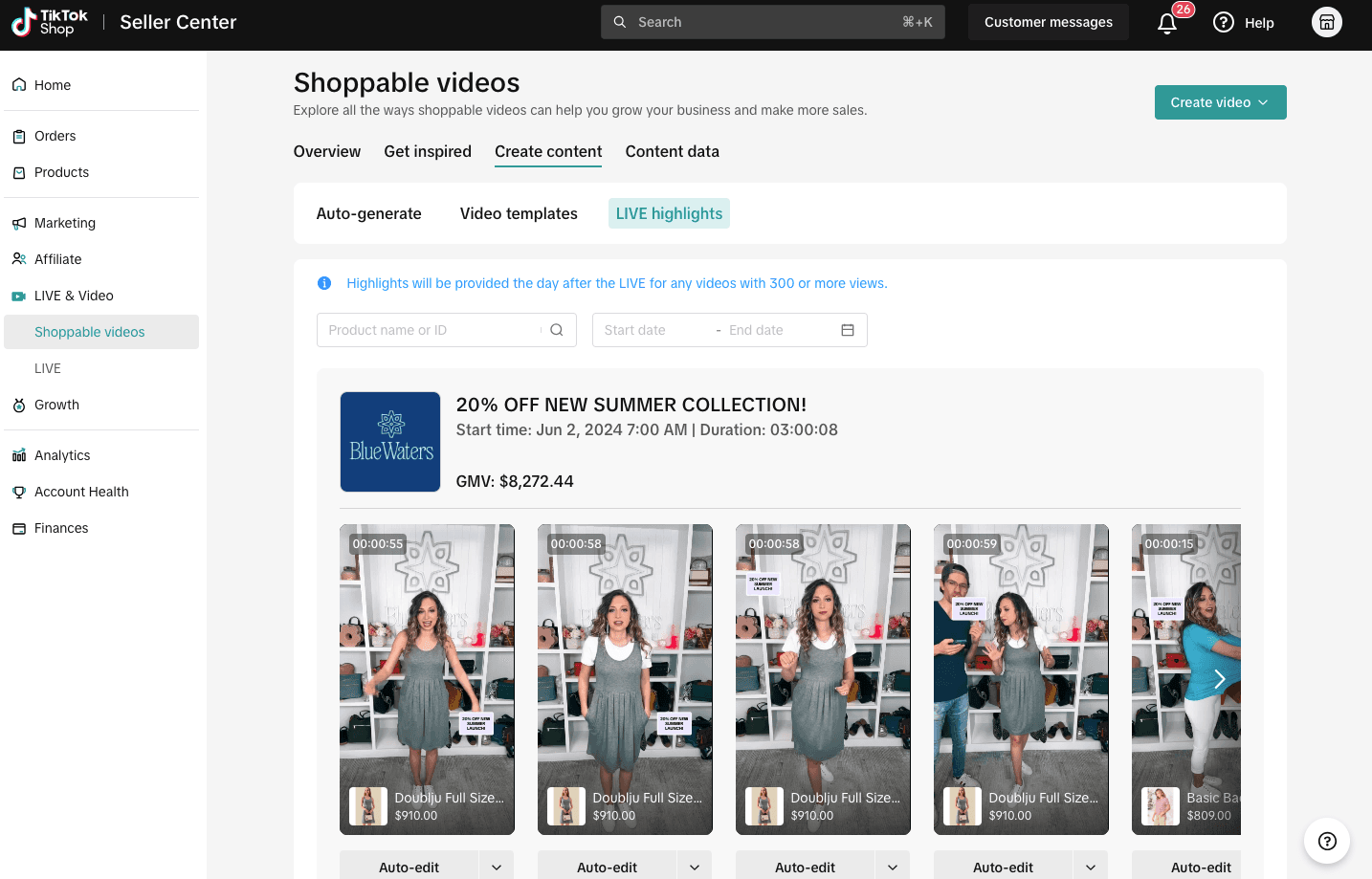
Clips are available for LIVEs with at least 300 views
Each clip:
Extends slightly to complete full sentences
Focuses on one product only
Removes mentions of “link in bio” or live-only interactions
Step 3: Choose Your Action
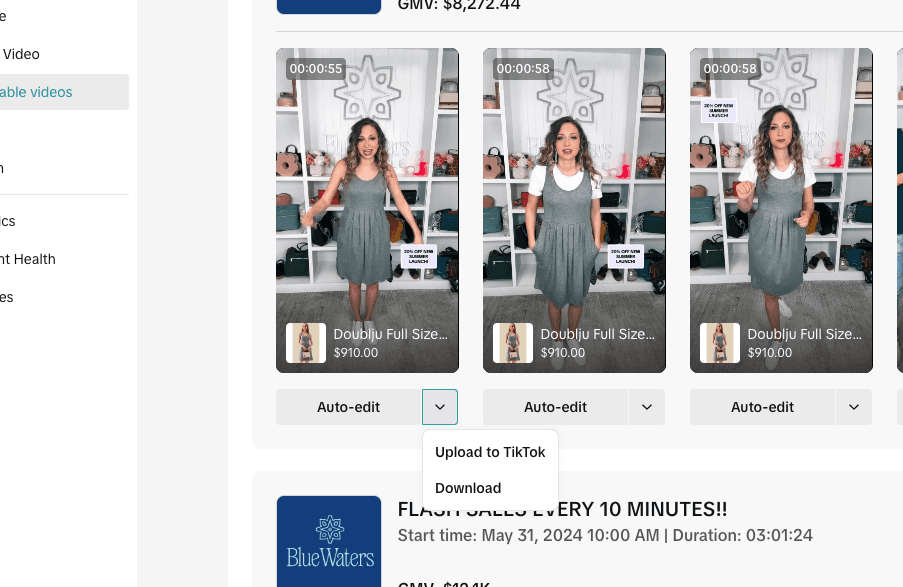
Auto-edit (adds product name, captions, stickers, and music)
Upload directly to TikTok
Download for offline use or external editing
Auto-editing enhances the clip with:
Product name title card
Captions for accessibility
Call-to-action sticker at the end
Background music (if your original had none)
How to Use LIVE Highlights on the TikTok App
After your livestream ends, TikTok generates highlight clips within 10 minutes.
You can access them two ways:
📦 From the LIVE Shopping Bag
Tap “+” > LIVE > Products
Click the Highlight button
Browse clips with the highest product clicks
Edit & publish as a short video
TikTok will automatically include the linked product
🎥 From the LIVE Center (Replay Section)
Tap “+” > LIVE Center > Replay
Choose your highlight clips
Edit and post
You’ll get up to 3 highlight clips per LIVE, selected based on product click volume — a great indicator of which moments truly resonated.
Pro Tips to Maximize Your LIVE Highlights
🛍️ Pin at least 3 products during your livestream
This gives the system more content to work with and increases your chance of high-converting clips.
⏱️ Go live for at least 1–2 hours
This ensures you create enough engaging product moments for the platform to detect and highlight.
🎬 Follow short video best practices
Use trending sounds, clear captions, and relevant hashtags. Treat your LIVE highlights like native TikToks — not just repurposed clips.
FAQs
❓ When are LIVE Highlights generated?
Seller Center: Next day for LIVEs with 300+ views
App: Within 10 minutes after the LIVE ends
❓ Where can I find my past highlights?
Seller Center: LIVE & Videos > Shoppable Videos > Create Content > Live Highlights
App: + > LIVE > Products > Highlight button
❓ Can I change the product link if TikTok gets it wrong?
Yes — when posting the short video, you can manually update the product anchor.
❓ What happens if I delete my LIVE?
Deleting your LIVE also deletes your highlight clips. This cannot be undone.
Final Thoughts: Don’t Let Your Best Moments Die with the LIVE
With LIVE Highlights, TikTok Shop gives sellers and creators a simple yet powerful way to get more out of every minute they spend livestreaming. It's not just smart — it's essential.
At Zorilla Marketing, we help TikTok Shop clients repurpose LIVE content into effective short videos that continue generating views, traffic, and orders long after the camera stops rolling.
👉 Want help crafting a winning short-video funnel from your LIVEs? Let’s talk.
Also read:
Introducing LIVE Highlights: Turn Your TikTok Shop Livestreams into High-Converting Short Videos
TikTok Shop isn’t just about selling during your livestream — it’s about making your content work after the LIVE ends. Enter LIVE Highlights: a powerful new feature that automatically transforms your top-performing livestream moments into product-focused short videos.
Whether you’re a seller, creator, or partner account, this tool lets you keep driving orders, traffic, and brand visibility — even when you’re off-air.
What are LIVE Highlights?
LIVE Highlights are short-form clips generated from your livestreams on TikTok Shop. The platform automatically detects high-engagement moments — specifically when you’re presenting a product — and turns them into bite-sized videos optimized for reposting.
These clips:
Focus on one product per video
Cut out viewer shout-outs or unrelated banter
Are capped at 60 seconds
Can be edited, posted, or downloaded with product anchors included
You can access and edit these clips from both the TikTok Seller Center and TikTok App.
Why Use LIVE Highlights?
Here’s why this feature is a must for any serious TikTok Shop strategy:
🔁 Extend the life of your content
Turn your best livestream product pitches into short videos that continue to generate GMV post-LIVE.
📈 Drive pre-LIVE buzz
Post your highlights before your next stream to warm up your audience and increase attendance.
🎯 Create more content with less effort
No need to re-record or manually trim your livestreams. TikTok does the hard part — you just polish and post.
How to Use LIVE Highlights via TikTok Seller Center
Step 1: Access Highlights
Go to Seller Center > LIVE & Videos > Shoppable Videos Hub
Click on the Create Content tab and select LIVE Highlights
Step 2: Review Automatically Generated Clips
Clips are available for LIVEs with at least 300 views
Each clip:
Extends slightly to complete full sentences
Focuses on one product only
Removes mentions of “link in bio” or live-only interactions
Step 3: Choose Your Action
Auto-edit (adds product name, captions, stickers, and music)
Upload directly to TikTok
Download for offline use or external editing
Auto-editing enhances the clip with:
Product name title card
Captions for accessibility
Call-to-action sticker at the end
Background music (if your original had none)
How to Use LIVE Highlights on the TikTok App
After your livestream ends, TikTok generates highlight clips within 10 minutes.
You can access them two ways:
📦 From the LIVE Shopping Bag
Tap “+” > LIVE > Products
Click the Highlight button
Browse clips with the highest product clicks
Edit & publish as a short video
TikTok will automatically include the linked product
🎥 From the LIVE Center (Replay Section)
Tap “+” > LIVE Center > Replay
Choose your highlight clips
Edit and post
You’ll get up to 3 highlight clips per LIVE, selected based on product click volume — a great indicator of which moments truly resonated.
Pro Tips to Maximize Your LIVE Highlights
🛍️ Pin at least 3 products during your livestream
This gives the system more content to work with and increases your chance of high-converting clips.
⏱️ Go live for at least 1–2 hours
This ensures you create enough engaging product moments for the platform to detect and highlight.
🎬 Follow short video best practices
Use trending sounds, clear captions, and relevant hashtags. Treat your LIVE highlights like native TikToks — not just repurposed clips.
FAQs
❓ When are LIVE Highlights generated?
Seller Center: Next day for LIVEs with 300+ views
App: Within 10 minutes after the LIVE ends
❓ Where can I find my past highlights?
Seller Center: LIVE & Videos > Shoppable Videos > Create Content > Live Highlights
App: + > LIVE > Products > Highlight button
❓ Can I change the product link if TikTok gets it wrong?
Yes — when posting the short video, you can manually update the product anchor.
❓ What happens if I delete my LIVE?
Deleting your LIVE also deletes your highlight clips. This cannot be undone.
Final Thoughts: Don’t Let Your Best Moments Die with the LIVE
With LIVE Highlights, TikTok Shop gives sellers and creators a simple yet powerful way to get more out of every minute they spend livestreaming. It's not just smart — it's essential.
At Zorilla Marketing, we help TikTok Shop clients repurpose LIVE content into effective short videos that continue generating views, traffic, and orders long after the camera stops rolling.
👉 Want help crafting a winning short-video funnel from your LIVEs? Let’s talk.
Also read:


Learn how TikTok LIVE Highlights turn your top-performing livestream moments into short videos that drive orders, traffic, and engagement.
Introducing LIVE Highlights: Turn Your TikTok Shop Livestreams into High-Converting Short Videos
TikTok Shop isn’t just about selling during your livestream — it’s about making your content work after the LIVE ends. Enter LIVE Highlights: a powerful new feature that automatically transforms your top-performing livestream moments into product-focused short videos.
Whether you’re a seller, creator, or partner account, this tool lets you keep driving orders, traffic, and brand visibility — even when you’re off-air.
What are LIVE Highlights?
LIVE Highlights are short-form clips generated from your livestreams on TikTok Shop. The platform automatically detects high-engagement moments — specifically when you’re presenting a product — and turns them into bite-sized videos optimized for reposting.
These clips:
Focus on one product per video
Cut out viewer shout-outs or unrelated banter
Are capped at 60 seconds
Can be edited, posted, or downloaded with product anchors included
You can access and edit these clips from both the TikTok Seller Center and TikTok App.
Why Use LIVE Highlights?
Here’s why this feature is a must for any serious TikTok Shop strategy:
🔁 Extend the life of your content
Turn your best livestream product pitches into short videos that continue to generate GMV post-LIVE.
📈 Drive pre-LIVE buzz
Post your highlights before your next stream to warm up your audience and increase attendance.
🎯 Create more content with less effort
No need to re-record or manually trim your livestreams. TikTok does the hard part — you just polish and post.
How to Use LIVE Highlights via TikTok Seller Center
Step 1: Access Highlights
Go to Seller Center > LIVE & Videos > Shoppable Videos Hub
Click on the Create Content tab and select LIVE Highlights
Step 2: Review Automatically Generated Clips
Clips are available for LIVEs with at least 300 views
Each clip:
Extends slightly to complete full sentences
Focuses on one product only
Removes mentions of “link in bio” or live-only interactions
Step 3: Choose Your Action
Auto-edit (adds product name, captions, stickers, and music)
Upload directly to TikTok
Download for offline use or external editing
Auto-editing enhances the clip with:
Product name title card
Captions for accessibility
Call-to-action sticker at the end
Background music (if your original had none)
How to Use LIVE Highlights on the TikTok App
After your livestream ends, TikTok generates highlight clips within 10 minutes.
You can access them two ways:
📦 From the LIVE Shopping Bag
Tap “+” > LIVE > Products
Click the Highlight button
Browse clips with the highest product clicks
Edit & publish as a short video
TikTok will automatically include the linked product
🎥 From the LIVE Center (Replay Section)
Tap “+” > LIVE Center > Replay
Choose your highlight clips
Edit and post
You’ll get up to 3 highlight clips per LIVE, selected based on product click volume — a great indicator of which moments truly resonated.
Pro Tips to Maximize Your LIVE Highlights
🛍️ Pin at least 3 products during your livestream
This gives the system more content to work with and increases your chance of high-converting clips.
⏱️ Go live for at least 1–2 hours
This ensures you create enough engaging product moments for the platform to detect and highlight.
🎬 Follow short video best practices
Use trending sounds, clear captions, and relevant hashtags. Treat your LIVE highlights like native TikToks — not just repurposed clips.
FAQs
❓ When are LIVE Highlights generated?
Seller Center: Next day for LIVEs with 300+ views
App: Within 10 minutes after the LIVE ends
❓ Where can I find my past highlights?
Seller Center: LIVE & Videos > Shoppable Videos > Create Content > Live Highlights
App: + > LIVE > Products > Highlight button
❓ Can I change the product link if TikTok gets it wrong?
Yes — when posting the short video, you can manually update the product anchor.
❓ What happens if I delete my LIVE?
Deleting your LIVE also deletes your highlight clips. This cannot be undone.
Final Thoughts: Don’t Let Your Best Moments Die with the LIVE
With LIVE Highlights, TikTok Shop gives sellers and creators a simple yet powerful way to get more out of every minute they spend livestreaming. It's not just smart — it's essential.
At Zorilla Marketing, we help TikTok Shop clients repurpose LIVE content into effective short videos that continue generating views, traffic, and orders long after the camera stops rolling.
👉 Want help crafting a winning short-video funnel from your LIVEs? Let’s talk.
Also read:
Other Blogs
Other Blogs
Check our other project Blogs with useful insight and information for your businesses
Other Blogs
Other Blogs
Check our other project Blogs with useful insight and information for your businesses